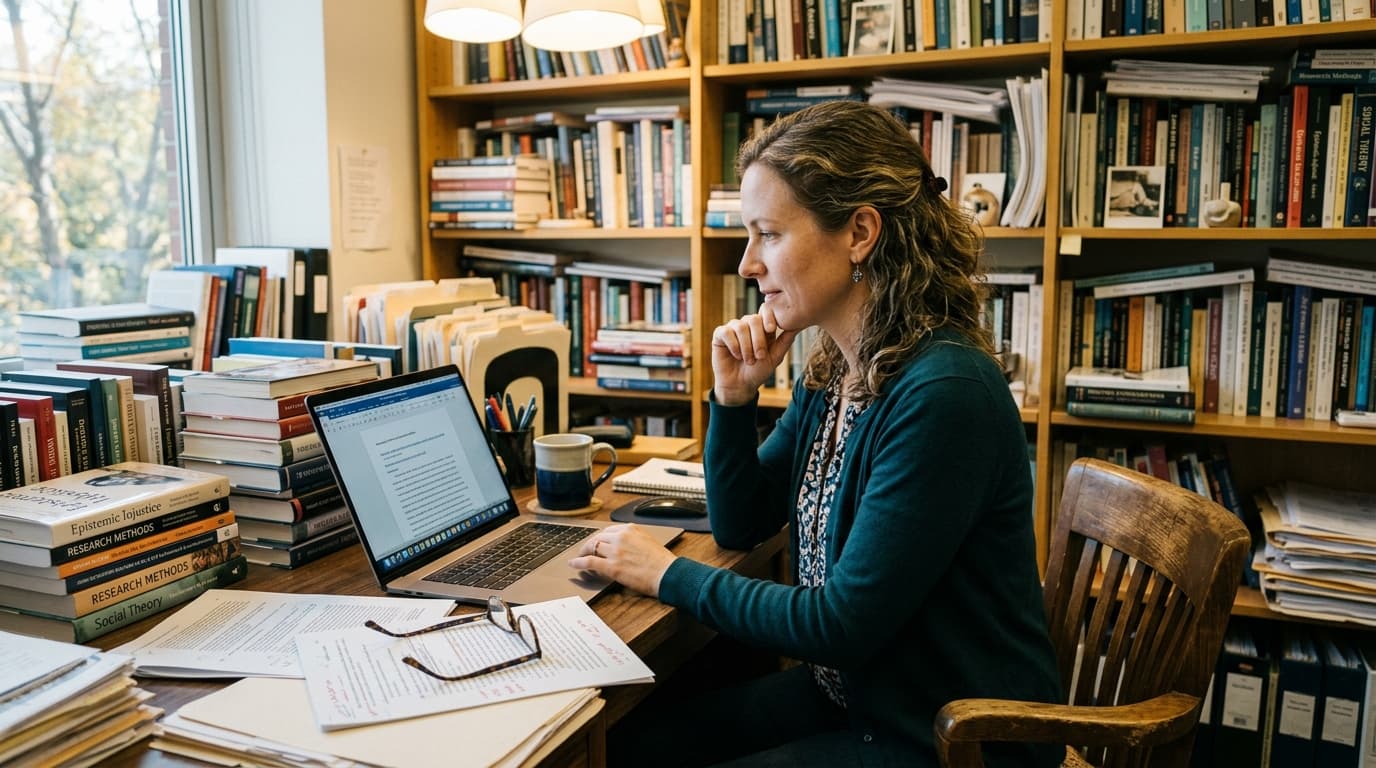
Academic writing is slow. Not because the thinking is slow, but because the typing is.
You've done the research. You know your argument. You can explain your findings clearly when talking to a colleague. But the moment you sit down to type, the words come out at 40 words per minute. A literature review that you could explain aloud in ten minutes takes an hour to type.
Now multiply that across a career. Papers, grant proposals, peer reviews, course syllabi, recommendation letters, conference abstracts, committee reports. Academics write constantly, and almost all of it is formal prose that could be spoken instead of typed.
Voice dictation lets you write at the speed you think. Speak your argument, and it appears as clean text in Word. What used to take an afternoon takes an hour.
Why Academics Are a Perfect Fit for Dictation
Most dictation articles target business professionals or creatives. But academics have a writing workflow that's uniquely suited to voice input.
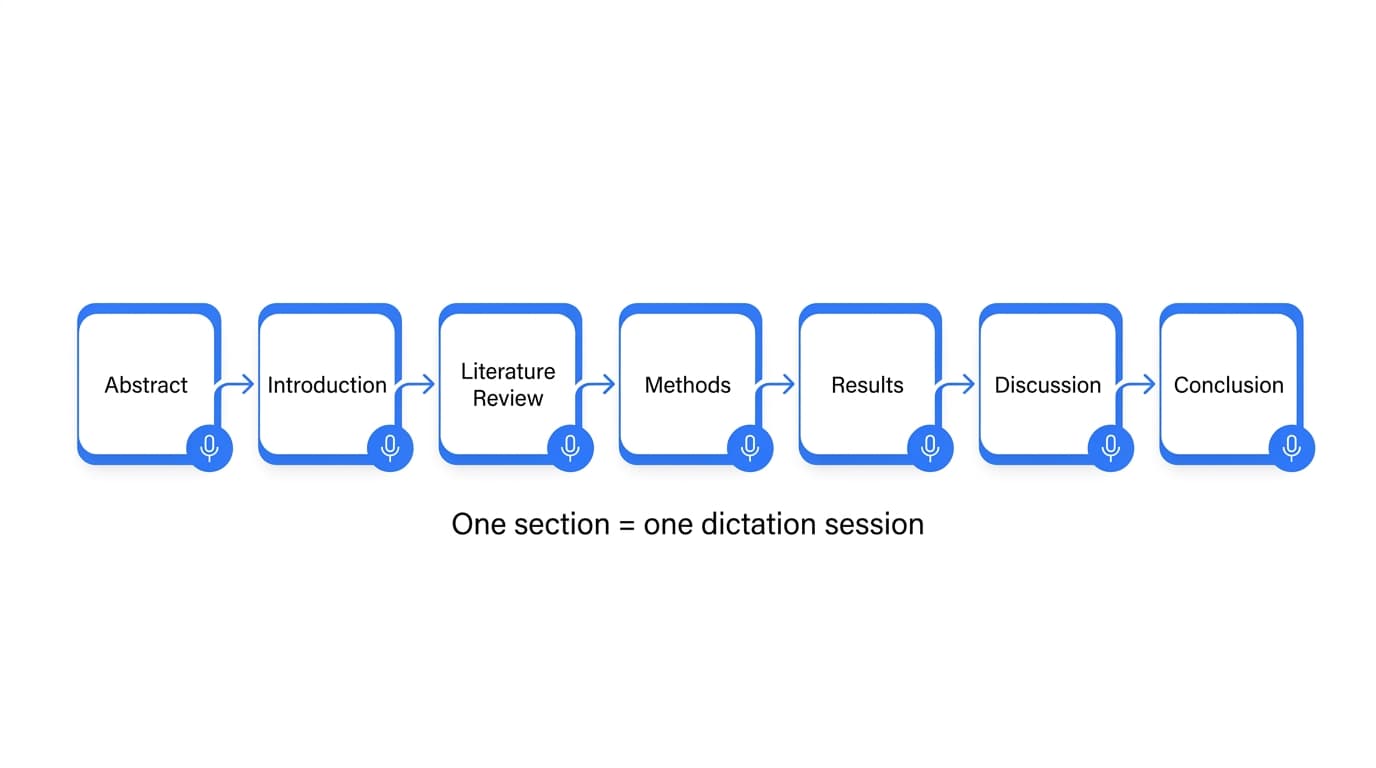
You already think in structured sections. Academic papers follow a predictable format: introduction, literature review, methods, results, discussion, conclusion. Each section is its own argument. This maps perfectly to dictation. You dictate one section at a time, and each dictation becomes a clean block of text.
You explain your ideas verbally all the time. Office hours, lab meetings, conference talks, hallway conversations. You already articulate your research by speaking. Dictation captures that same clarity and puts it on the page.
Revision is the real work. First drafts in academia are never final. You revise, restructure, tighten, and rewrite. Dictation gets the first draft down fast so you can spend your time where it actually matters: refining the argument.
The volume is relentless. Between papers, grants, reviews, and institutional obligations, most academics need to produce thousands of words per week. Even a modest speed improvement compounds over a semester.
What Academic Dictation Looks Like
Morning: Working on a Paper
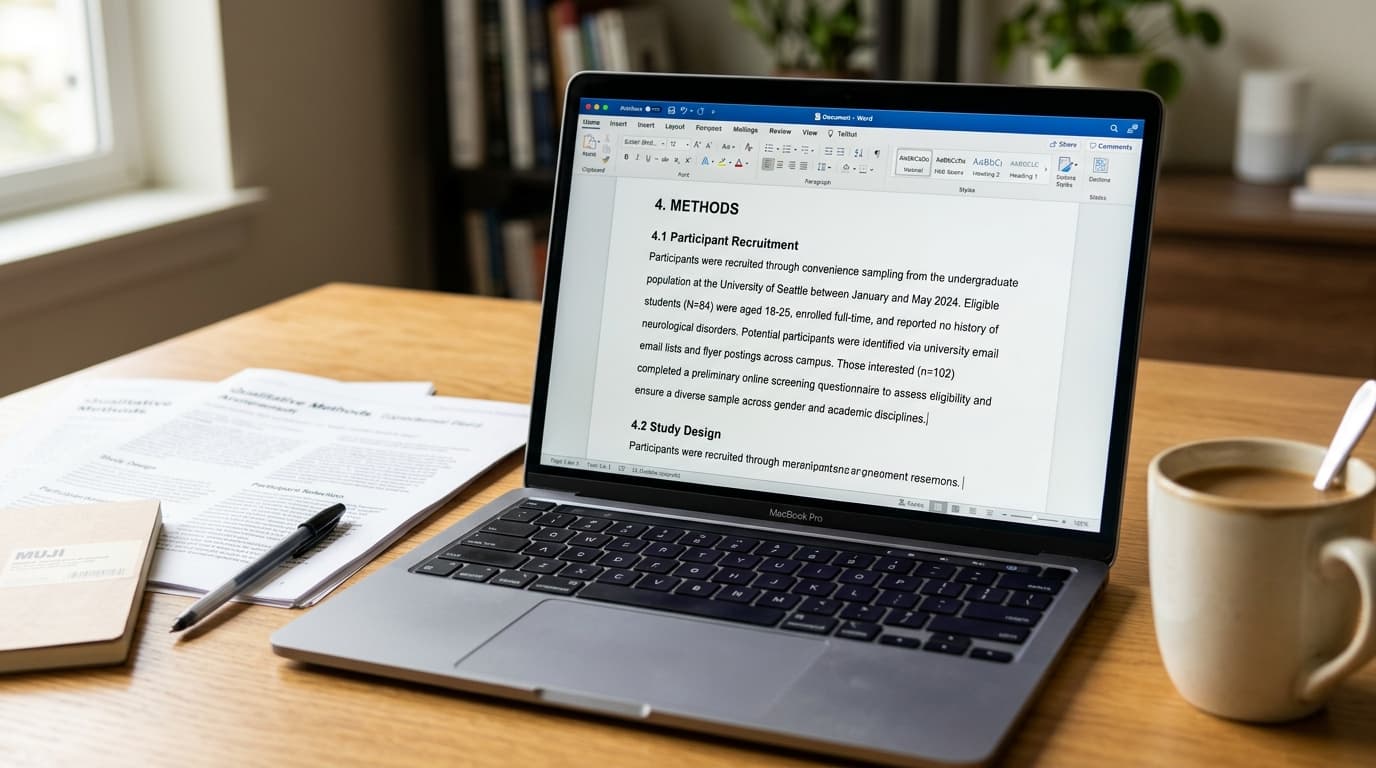
You open Microsoft Word and pull up your draft. The methods section is next. Instead of typing, you hold your trigger key and speak:
"Participants were recruited through departmental mailing lists and social media advertisements between September and December 2025. Eligibility criteria included enrollment as a full-time undergraduate student and no prior participation in related studies. A total of 147 participants completed the initial screening questionnaire, of whom 112 met the inclusion criteria and were invited to complete the full study protocol."
That took about 20 seconds. Smart Format cleans up the transcription: proper punctuation, capitalization, and sentence structure. The output reads like carefully typed academic prose.
You dictate the next paragraph. Then the next. The methods section that would have taken 90 minutes to type is done in 30. It's a first draft, not a final draft. But the material is on the page, and now you can revise.
Midday: Grant Proposal
A funding deadline is approaching. You switch to the specific aims section. This is the kind of writing where you know exactly what you want to say but getting it on the page feels painful. Every sentence matters. The temptation is to agonize over each word as you type.
With dictation, you take a different approach. Speak the argument first. Get the full paragraph down in one go. Then revise it. This separates the composing from the editing, and most academics find that splitting these two tasks produces better writing faster.
You dictate the significance section. Then the innovation section. The prose isn't perfect yet, but the thinking is all there. Editing polished text is faster than composing from a blinking cursor.
Afternoon: Peer Reviews and Emails
Three journal reviews due this month. You open each manuscript's review form in Chrome and dictate your comments. Detailed, constructive feedback. Speaking your thoughts while reading the paper is more natural than typing them, and your reviews end up more thorough because the friction of typing isn't limiting what you say.
A recommendation letter for a grad student. You open Word and dictate the full letter in five minutes. An email to a collaborator about next steps on a project. A response to a committee request. All dictated, all sent.
Features That Matter for Academics
Smart Format
Academic writing demands precise, formal prose. Smart Format takes your spoken words and formats them into clean, publication-ready sentences. Filler words removed. Punctuation correct. Sentence structure clean.
This matters because academic text has a specific register. It needs to sound formal and deliberate, not conversational. Smart Format bridges the gap between natural speech and the polished prose expected in journals and grant applications.
Magic Edit
This is where dictation becomes a complete writing tool for academics.
Select a paragraph you've dictated and give a voice instruction: "make this more concise," "combine these two paragraphs," "rewrite this in a more formal tone," or "restructure this as three distinct points."
Academic writing involves constant revision. Tightening a paragraph. Merging two ideas. Changing the framing of an argument. Magic Edit lets you do all of this by voice. Select the text, speak the instruction, and the revision appears. No retyping.
For literature reviews especially, where you're constantly synthesizing and restructuring sources, Magic Edit turns a tedious cut-and-paste process into a series of quick voice commands.
Custom Words
Every field has its terminology. Statistical methods, theoretical frameworks, assessment instruments, software packages, author names you cite frequently.
Custom Words lets you teach FlowDictate your vocabulary. Add the terms that matter to your discipline: methodology names (grounded theory, thematic analysis, structural equation modeling), software (SPSS, NVivo, MATLAB, R), and frequently cited authors. Transcription accuracy for your field's language improves noticeably within the first week.
System-Wide Dictation
Word for papers. Chrome for review portals and email. Preview for reading PDFs. Slack or Teams for collaborator messages. You move between apps throughout the day.
FlowDictate works in all of them. One trigger key, every app on your Mac. Text goes directly where your cursor is.
Tips for Academic Writers
1. Dictate by section, not by paper. Don't try to dictate an entire paper in one sitting. Work through it the way you think about it: introduction, then lit review, then methods. Each dictation session produces one clean block. This mirrors how papers are structured and keeps each dictation focused.
2. Separate composing from editing. Speak the first draft without stopping to perfect it. Get the full argument on the page, then switch to editing mode. Dictation is fastest when you let yourself think aloud and clean up afterward. Many academics report that this separation produces better first drafts because they stop self-editing while writing.
3. Use Magic Edit for revision passes. Instead of retyping paragraphs, select them and give voice instructions. "Tighten this," "merge these," "make the transition smoother." This keeps you in the flow of revision without getting bogged down in manual edits.
4. Build Custom Words for your field early. Statistical tests, assessment names, software, and frequently cited researchers. Add them in your first session. By your second writing day, technical accuracy will be noticeably better.
5. Dictate peer reviews while you read. Open the manuscript in one window and the review form in another. As you read each section, dictate your comments in real time. This produces more detailed reviews and takes less time than writing comments from memory after reading the full paper.
Getting Started
FlowDictate is a native app for macOS and Windows 10 & 11 with a 14-day free trial. No credit card required. Setup takes under two minutes:
- Download FlowDictate from flowdictate.com
- Choose your trigger key during setup
- Open Microsoft Word or any app you write in
- Hold the key and start speaking. Smart Format is on by default.
FlowDictate is SOC 2 compliant, runs natively on macOS (Apple Silicon and Intel) and Windows 10 & 11, and costs $12/month on the annual plan. Try it on your next paper and see how much faster the first draft comes together.