
You send 30, 40, maybe 60 emails a day. Each one needs to sound professional. Each one needs the right tone. And each one pulls you away from the work that actually moves things forward.
The average professional spends 28% of their workday on email. That's over two hours just typing messages. Not thinking about what to say. You already know what to say. The bottleneck is your fingers on the keyboard, crafting each sentence one keystroke at a time.
What if you could speak a reply in 20 seconds and have it land in someone's inbox sounding like you spent five minutes writing it?
The Email Productivity Trap
Most email productivity advice focuses on inbox management. Archive faster. Use templates. Batch your email time. That's all fine, but it misses the real time sink.
The slowest part of email is composition. Especially the messages that require thought. A client update, a diplomatic pushback on a deadline, a detailed response to a vendor question. These aren't template territory. They need your voice, your judgment, your specific knowledge of the situation.
Typing those at 40 words per minute means a three-paragraph email takes three to four minutes. Multiply that across 30+ messages and you've lost your morning.
Speaking is different. You talk at 130 to 150 words per minute. That same three-paragraph email takes 30 seconds to dictate. Even with a few seconds for AI formatting, you're done in under a minute.
The math is simple. The shift is dramatic.

What a Dictation-First Email Workflow Looks Like
Here's how this plays out across a real workday.
7:45 AM: Morning Triage
You open Mail and scan your inbox. Twelve messages overnight. Three need quick replies. Four need real responses. Five can wait.
You click the first quick reply. Hold your trigger key. "Thanks for sending this over, I'll review it this afternoon and circle back with feedback by end of day." Release. Smart Format cleans it up instantly. Punctuation, capitalization, the works. Send.
Next one. Hold, speak, release, send. Three quick replies done in under two minutes. They would have taken six or seven minutes to type.
9:30 AM: The Thoughtful Responses
A client wants a project timeline update. You know the details. Instead of staring at a blinking cursor trying to find the right opening sentence, you just talk.
"Hi Sarah, wanted to give you a quick update on the Henderson project. We wrapped up the design phase last Friday and the development team started building on Monday. We're tracking ahead of the original timeline by about three days. I'll send over the staging link next week for your team to review. Let me know if you need anything in the meantime."
That took 15 seconds. Smart Format turns it into a clean, professional email. No filler words. Proper punctuation. It reads like you sat down and carefully composed it.
12:00 PM: Cross-Platform Communication
A message comes through Slack. Then a follow-up in Gmail in the browser. Then you need to update a shared Google Doc with meeting notes.
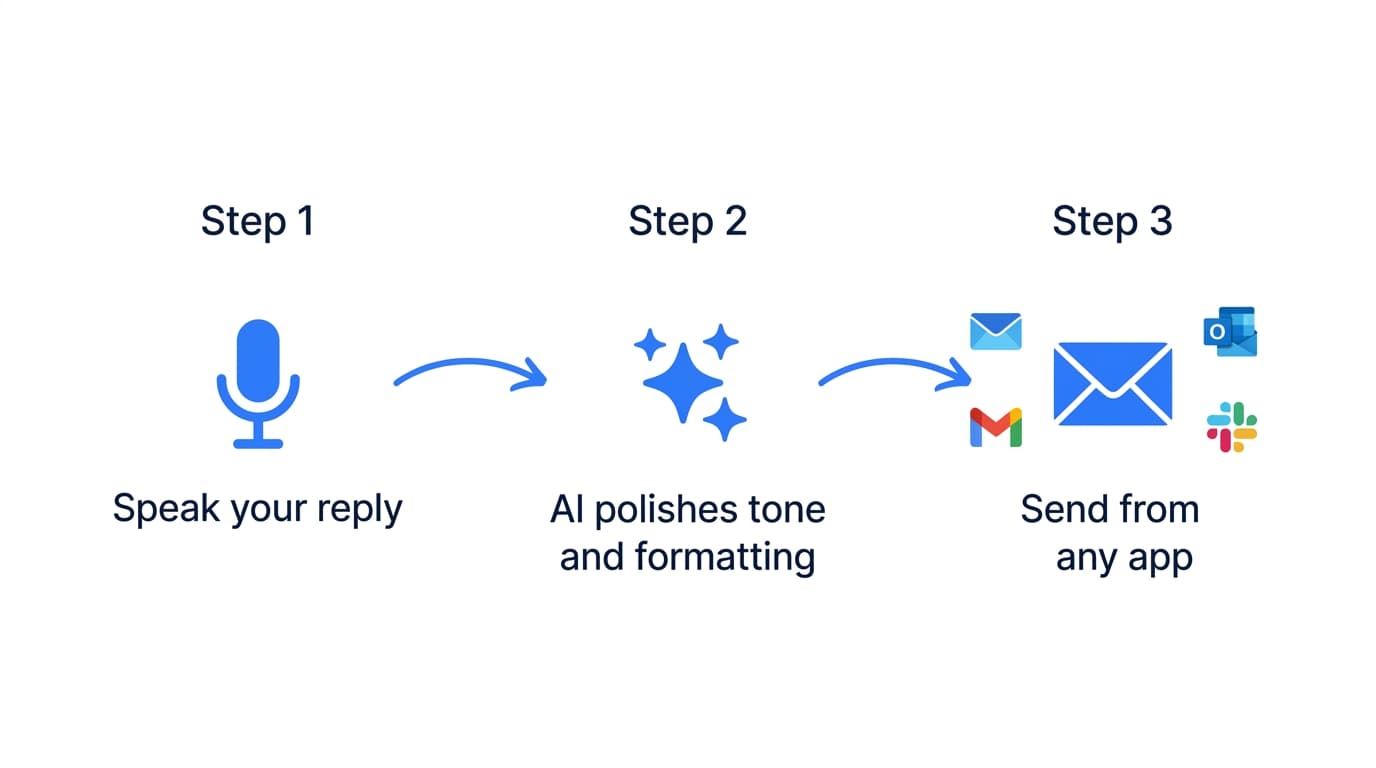
Same trigger key, every app. You don't switch tools or open a separate dictation window. Wherever your cursor is, that's where the text goes.
4:30 PM: End-of-Day Batch
Six emails left to send before you close your laptop. Replies, follow-ups, a meeting recap. You move through them fast. Hold key, speak, review, send. The backlog that used to bleed into your evening is cleared in fifteen minutes.
Features That Make This Work
Smart Format
This is what turns dictation from a gimmick into a real workflow. When you speak, you don't speak in perfect sentences. You pause, restart, throw in an "um" or "basically." That's normal.
Smart Format strips all of that out. What arrives in your compose window is clean, professional prose. Proper capitalization, correct punctuation, no filler. It sounds like you typed it carefully. You didn't.
For email, this matters more than anywhere else. Every email you send represents you professionally. Smart Format means you can speak naturally and still send polished messages. It's on by default from your first dictation.
System-Wide Dictation
Email lives in more places than your inbox. Apple Mail. Gmail in Chrome. Outlook. Messages. Slack. LinkedIn messages. Teams.
FlowDictate works in all of them. One trigger key, every text field on your Mac. You don't need a separate tool for each app or a browser extension that only works in Gmail. If you can type in it, you can dictate in it.
Magic Edit
You dictated a reply. It's good, but the tone is a little too casual for this particular client. Instead of retyping, select the text and use Magic Edit. Give a voice instruction: "Make this more formal" or "Shorten this to two sentences" or "Add a line thanking them for their patience."
The revision happens instantly. No rewriting from scratch.

This is especially useful for sensitive emails. The ones where every word matters. Dictate your initial thoughts quickly, then use Magic Edit to fine-tune the tone.
Hotkey Activation
No clicking a button. No opening a separate window. Hold your trigger key, speak, release. Text appears wherever your cursor is. The interaction is invisible. It fits inside your existing email workflow without adding any steps.
You can reply to an email as fast as you can think of the response.
Tips for Email Power Users
1. Match your dictation length to the message type. Quick replies get one dictation. Detailed responses get two or three. Don't try to dictate an entire five-paragraph email in one breath. Pause between logical sections.
2. Let Smart Format handle the polish. Don't try to speak punctuation or say "comma" and "period." Just talk naturally. Smart Format will handle structure, punctuation, and formatting. Trust it.
3. Use Magic Edit for tone adjustments. Dictated something that sounds too blunt? Too casual? Select it and tell FlowDictate to adjust. This is faster than manually softening language, and you keep the substance of what you wanted to say.
4. Dictate the hard emails first. The ones you've been putting off. The diplomatic pushback. The bad news delivery. These are the messages that eat the most time because you overthink every sentence. Speaking forces you to just say it. Then polish with Magic Edit if needed.
5. Pick a comfortable trigger key. You'll use it dozens of times a day. Fn or Right Option are popular because they're easy to reach without interrupting your hand position. Try a few and settle on what feels natural within your first day.
Getting Started
FlowDictate is a native app for macOS and Windows 10 & 11 with a 14-day free trial. No credit card required. Setup takes under two minutes:
- Download FlowDictate from flowdictate.com
- Choose your trigger key during setup
- Open your inbox in Mail, Gmail, Outlook, or any email client
- Hold the key and start speaking. Smart Format is on by default.
FlowDictate runs natively on macOS (Apple Silicon and Intel) and Windows 10 & 11 and works across every app where you write. Your emails, your Slack messages, your documents. One tool, one trigger key.